
how to install labwc windowmanager and noctalia shell on ubuntu26.04
- Downlaod Ubuntu-Server Image https://ubuntu.com/download/server
- Install labwc and foot terminal
sudo apt update && sudo apt upgrade -y
sudo apt install labwc foot
3. Install Noctalia + login greeter https://docs.noctalia.dev/noctalia/getting-started/installation/?section=tab-panel-11#tab-panel-11
wget https://pkg.noctalia.dev/deb/nickh-archive-keyring.deb && sudo dpkg -i nickh-archive-keyring.deb
sudo wget -O /etc/apt/sources.list.d/noctalia-resolute.sources https://pkg.noctalia.dev/deb/noctalia-resolute.sources
sudo apt update
sudo apt install noctalia
sudo apt install noctalia-greeter
4. Set up everything
# find out where standard example config files are for labwc

dpkg -L labwc | grep -E 'rc.xml|autostart|menu.xml'

# should be "/usr/share/doc/labwc"
# copy example configuration to home directory

cp -r /usr/share/doc/labwc/. ~/.config/labwc/
Add following to labwc config ~/.config/labwc/rc.xml https://docs.noctalia.dev/noctalia/compositor-settings/labwc/
## in ~/.config/labwc/rc.xml
## Example config structure:

#<?xml version="1.0" encoding="UTF-8"?>
#<labwc_config>
#  <!-- The config goes here -->
#</labwc_config>

## Recommended compositor settings:

  <core>
    <gap>10</gap>
  </core>
  <!-- Thumbnail-based window switcher -->
  <windowSwitcher preview="no" outlines="yes">
    <osd style="thumbnail"/>
  </windowSwitcher>
Autostart Noctalia with labwc
## in ~/.config/labwc/autostart
# add noctalia at the end of file

echo "noctalia" >> ~/.config/labwc/autostart
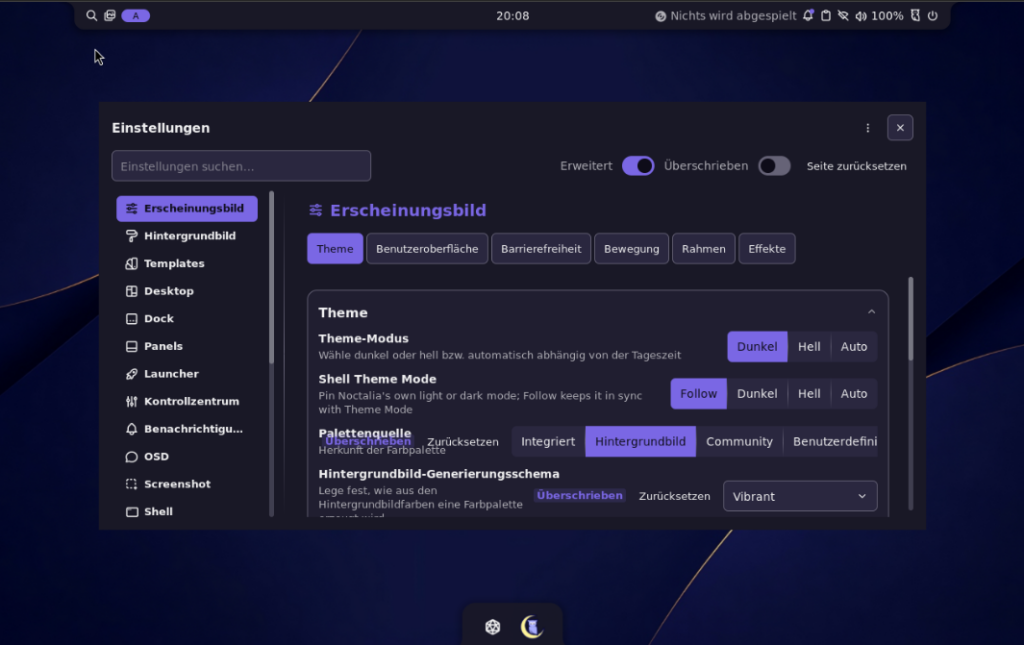
Reboot and greetd should automaticly start
now you can login and enjoy 🙂
Für Automatischen login (praktisch für VMs und Remote Sessions)
## Ersetze peter mit deinem usernamen

sudo tee -a /etc/greetd/noctalia-greeter.toml <<'EOF'

[initial_session]
command = "labwc"
user = "peter"
EOF
Schreibe einen Kommentar
Du musst angemeldet sein, um einen Kommentar abzugeben.